

This tutorial provides step-by-step instructions to install IPTV on Roku. Using a Roku device, we must “sideload” IPTV on the Roku device. The instructions below will require the use of a computer in order to download the IPTV app file and add it to your Roku streaming device.
If you are using another IPTV player such as TiviMate, you can also watch IPTV on Roku by casting to your Roku device. IPTV Smarters is one of the best IPTV Players, compatible with hundreds of IPTV services that use a server URL.
Anyways, let’s get into how to install IPTV on Roku. I divided the instructions into four parts to make them easier to follow:
- Part 1: Enabling developer options on Roku
- Part 2: Adding the IPTV Smarters channel
- Part 3: Downloading the IPTV Smarters package on your computer
- Part 4: Installing IPTV Smarters on Roku
Don’t worry, the process is easier than it sounds. Let’s begin.
Enable Developer Options on Roku
1. Launch your Roku by switching to its HDMI input on your television.
2. Grab your Roku remote and press the following buttons in this order: Home Button x3, Up Arrow x2, Right Arrow x1, Left Arrow x1, Right Arrow x1, Left Arrow x1, Right Arrow x1.
3. If done correctly, the developer options menu will appear on your Roku TV screen.
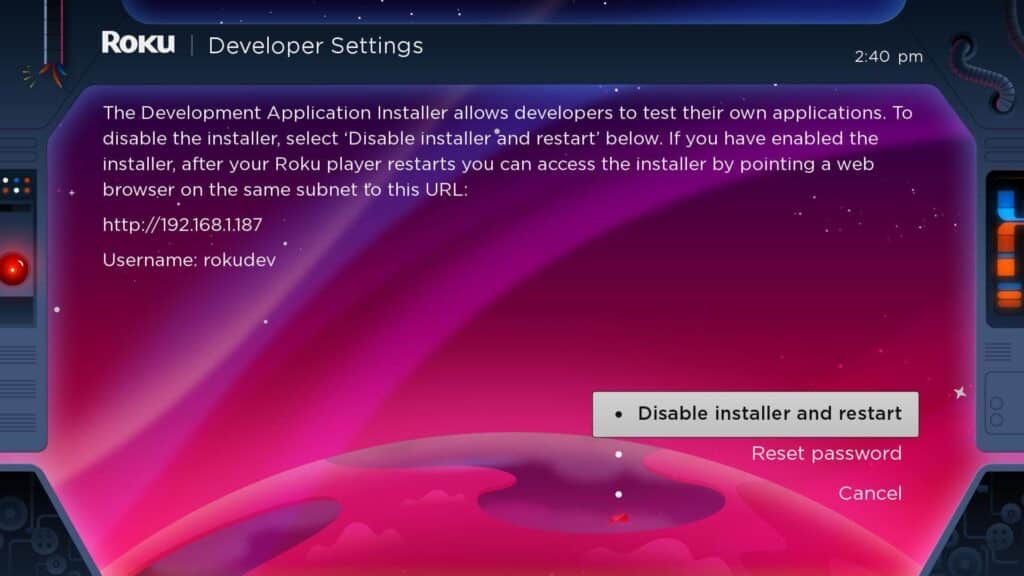
4. Write down the IP address listed on the screen.
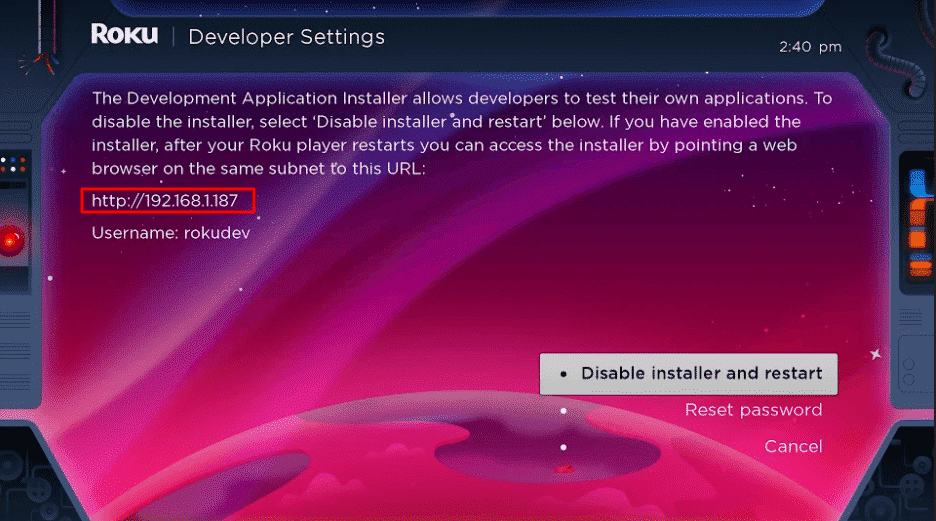
5. Select Enable installer and restart (mine says Disable because I’ve already done this).
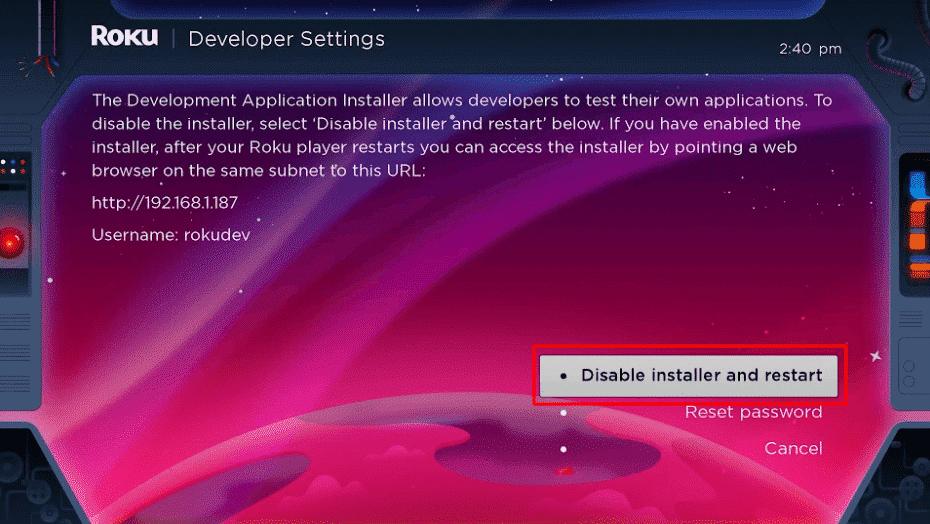
6. Scroll through the Developer Tools License Agreement and select I Agree.
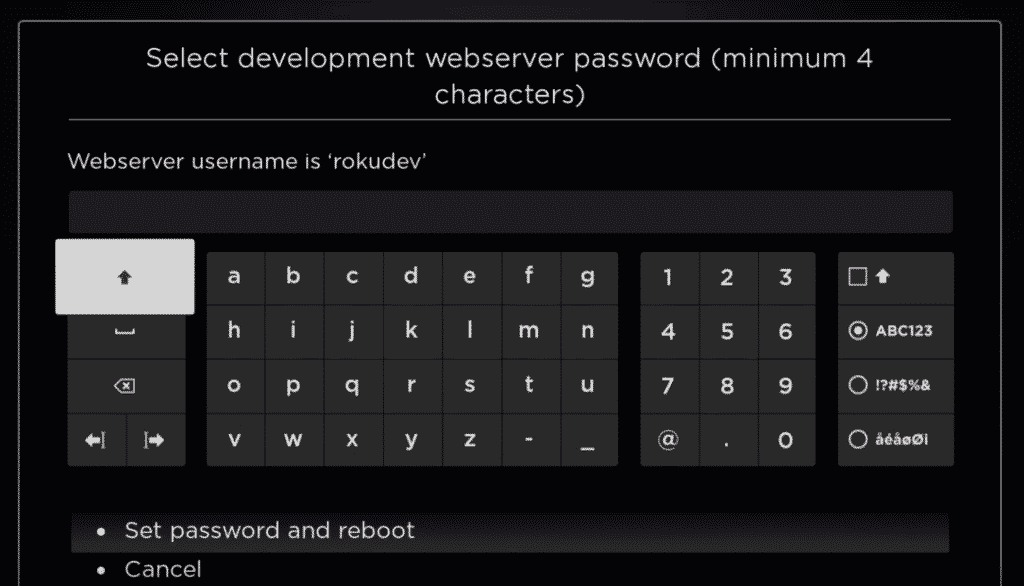
7. Create a webserver password using the keyboard that appears. You will need your webserver password for a later step.
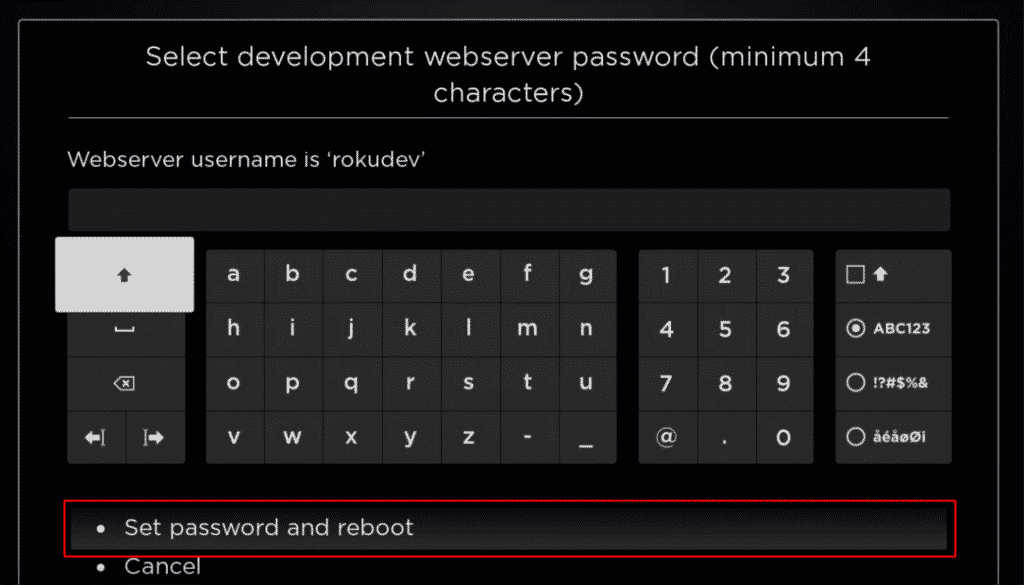
8. Select Set password and reboot.
Part 2: Add IPTV Smarters Channel
1. Head to your computer and navigate to my.roku.com using any browser.
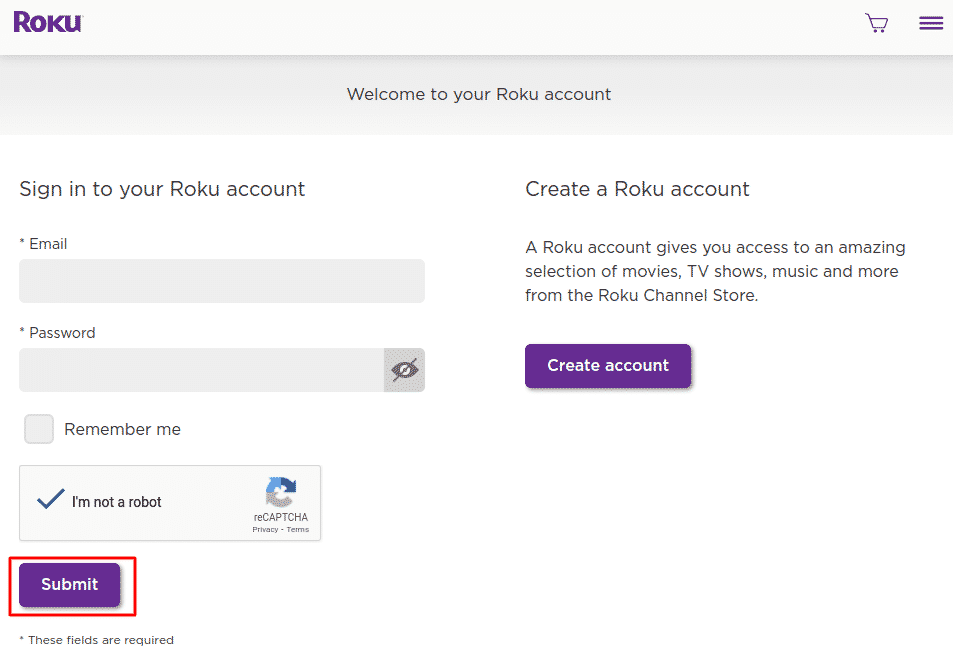
2. Type in your username and password for your Roku account, and click Submit.
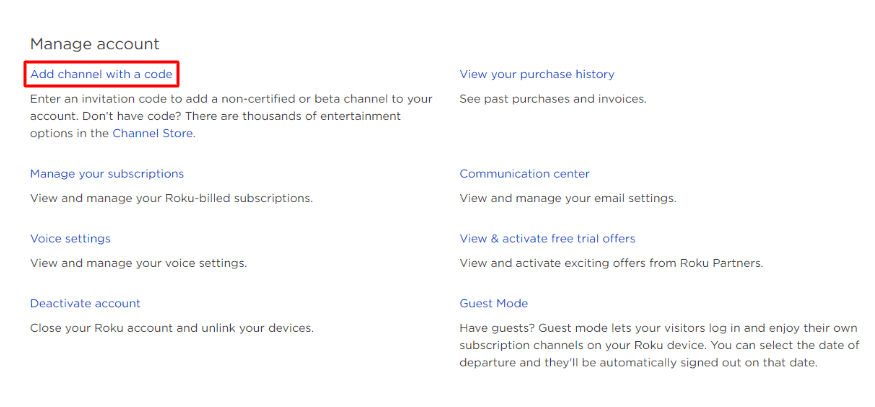
3. Once logged in, select Add channel with a code, under Manage account.
4. Type iptvsmarters into the box. Make sure you’ve typed it exactly as shown.
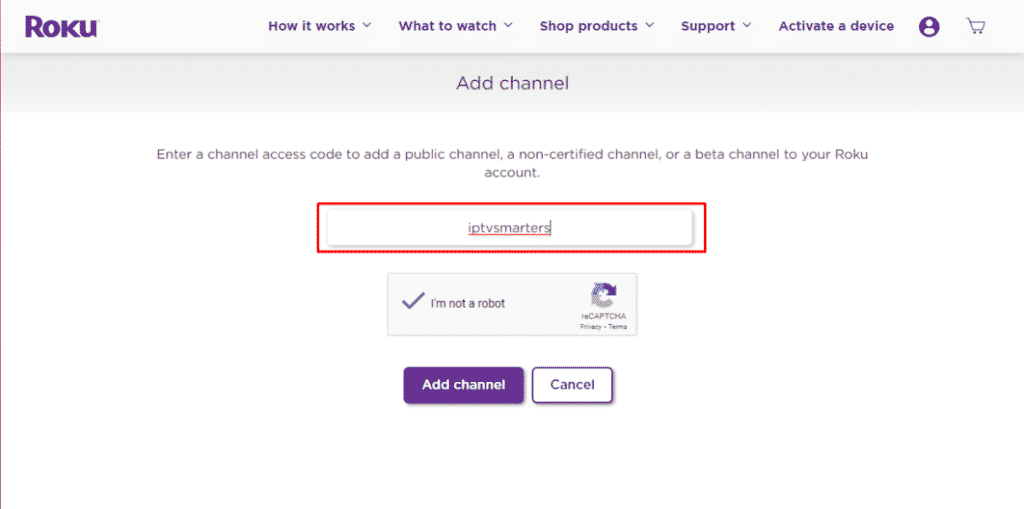
5. Select Add Channel to add it to your Roku.
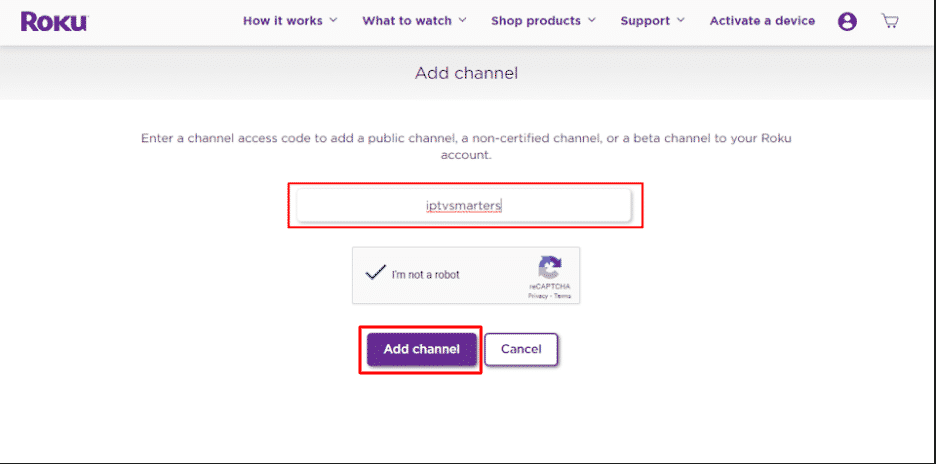
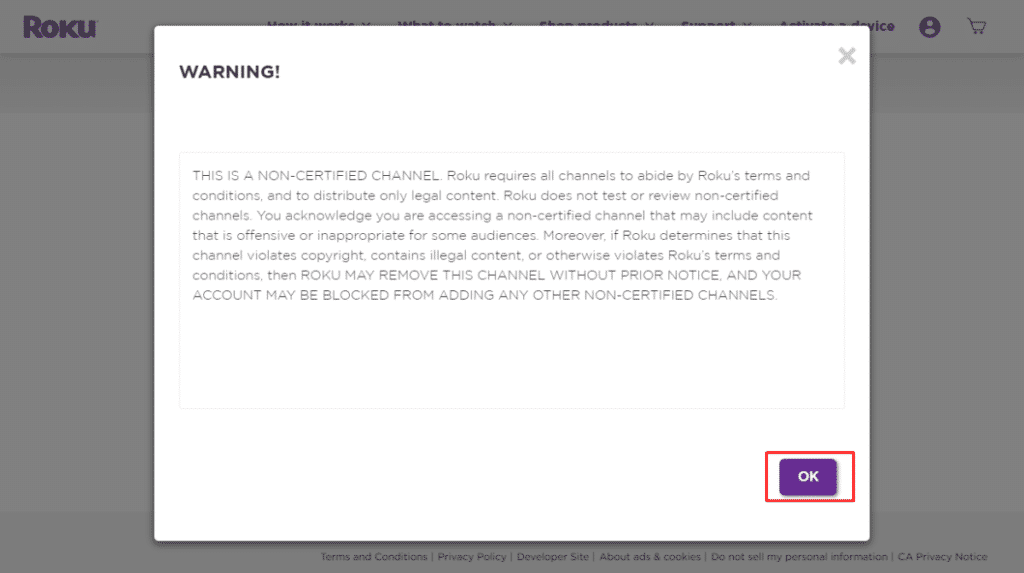
6. Click OK on the warning message that appears.
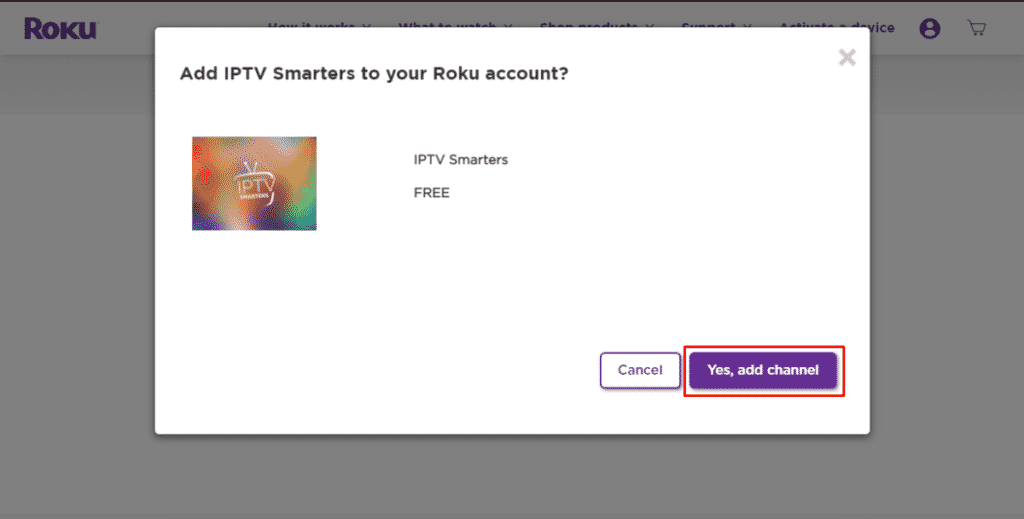
7. Select Yes, add channel on the following popup.
Part 3: Download IPTV Smarters Package on Your Computer
Now, it’s time to download the IPTV Smarters file onto your computer.
1. Head to the this link on your computer: https://bit.ly/IPTVSmartersProRokuApp
Note: FireStickTricks.com doesn’t host or distribute this APK. The link redirects to a site where it’s hosted.
2. Click on Download Package.
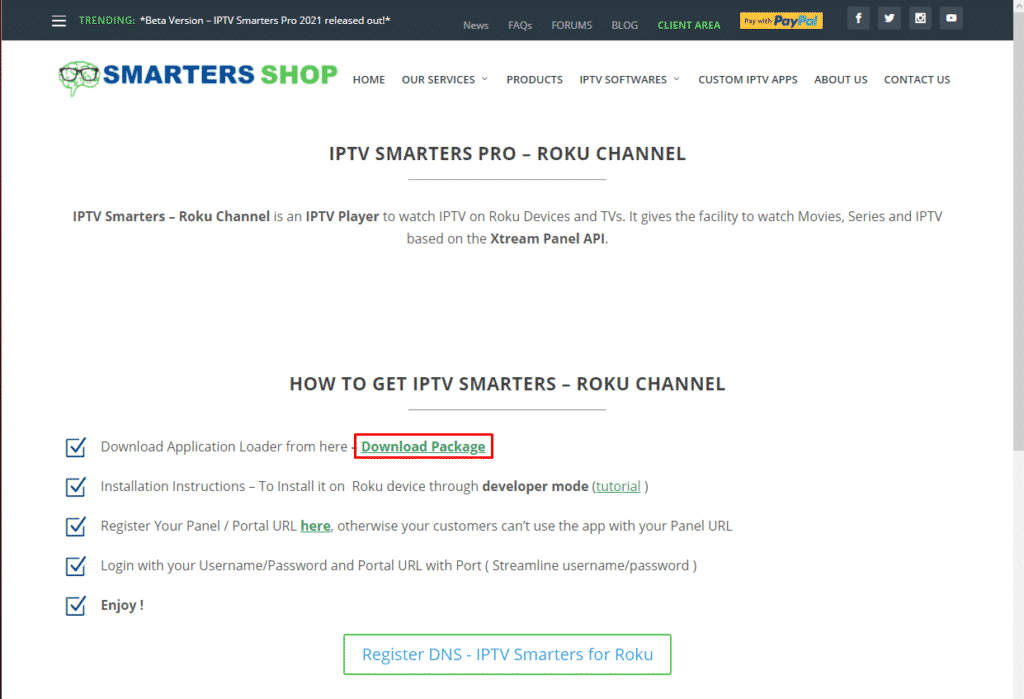
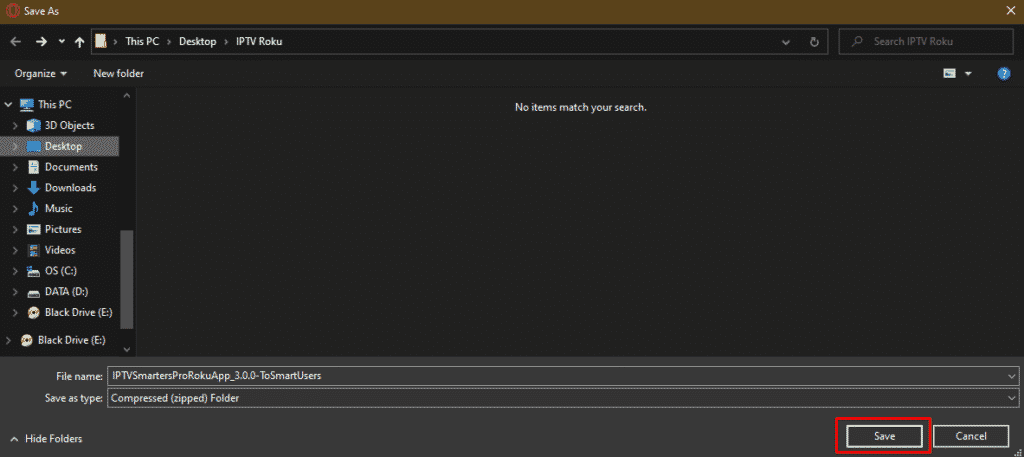
3. Save the IPTV Smarters package somewhere accessible on your computer (you’ll need to browse to this location in a moment). I’m going to save it on my Desktop.
Part 4: Install IPTV Smarters on Roku
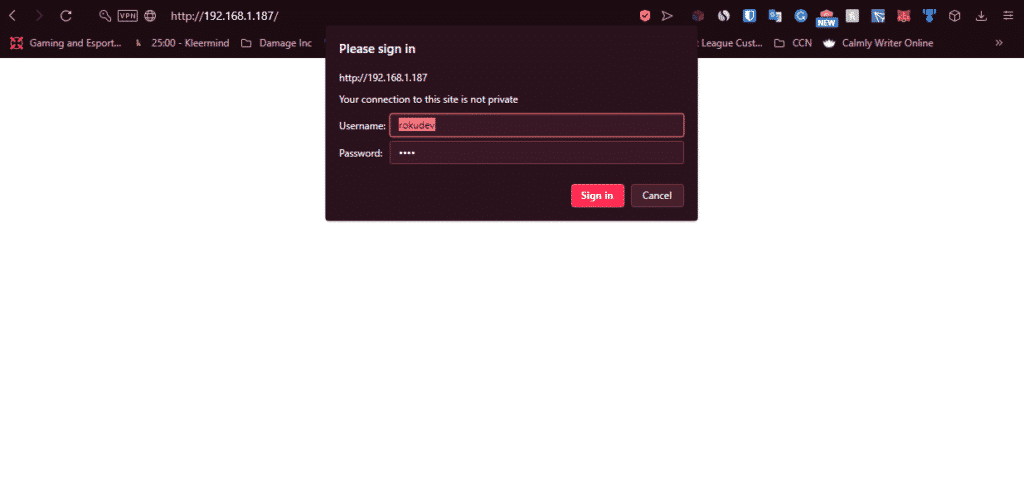
1. On your computer, open any browser. In the address bar, enter the IP address from your Roku that you wrote down earlier.
2. A sign-in box will appear. Type rokudev as the Username. For the Password, type in the webserver password you created earlier. Finally, click Sign in.
3. Click Upload on the next page.
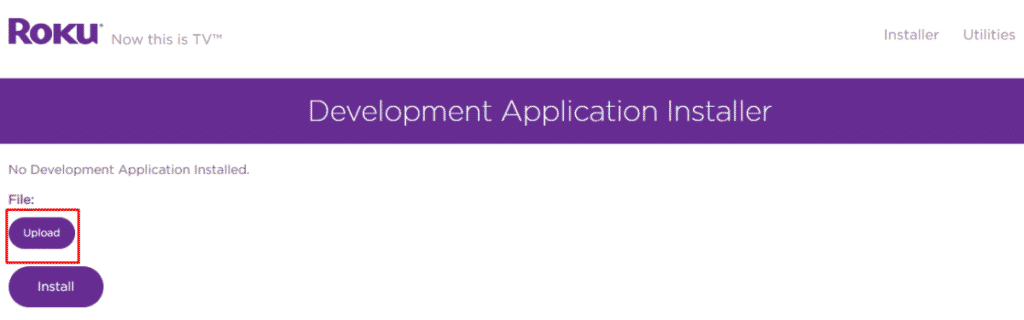
4. Browse to the location where you downloaded the IPTV Smarters package (mine was my Desktop). Select the downloaded folder and click Open.
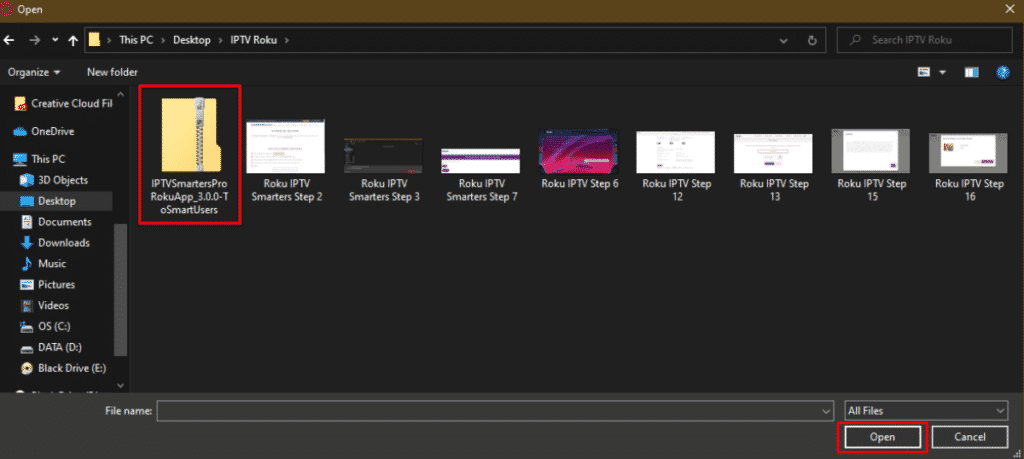
5. Click Install once the file is uploaded.
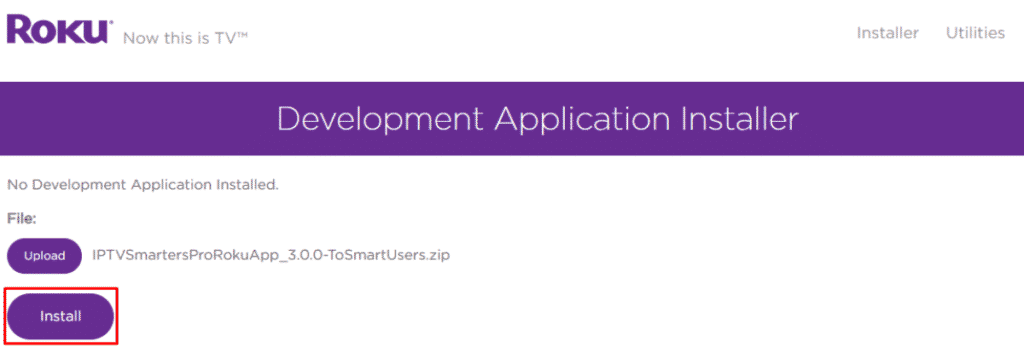
6. If you see this screen, you’ve done it correctly!
7. Head back to your Roku device, and IPTV Smarters will be on the television.
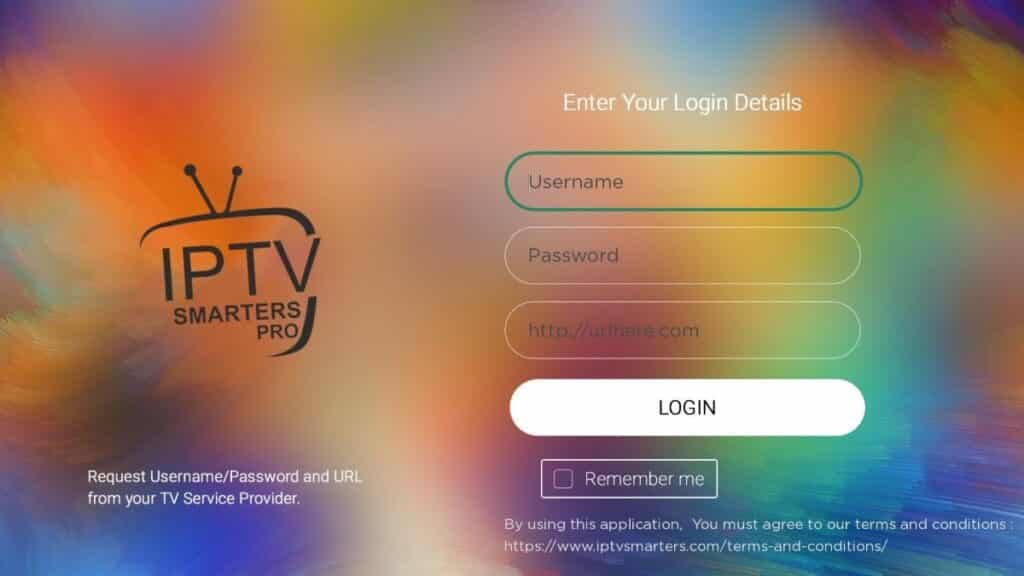
8. Simply log in with your IPTV Smarters information and you’re in!
Steps to Watch IPTV on Roku Through Screen Mirroring
To stream IPTV on your Roku-connected TV using screen mirroring, you need to install IPTV Smarters or Smart IPTV (a different IPTV player) on your smartphone. Once you have one of these two players, you can use the cast or mirror option on your device.
With the cast/mirror option, you can access content on your Roku TV from any device on the same Wi-Fi network that’s using the IPTV player app.
